

Description
Download Opera Browser – Fast, Secure, AI‑Powered Web Experience
Why Opera Stands Out in a Crowded Browser Market
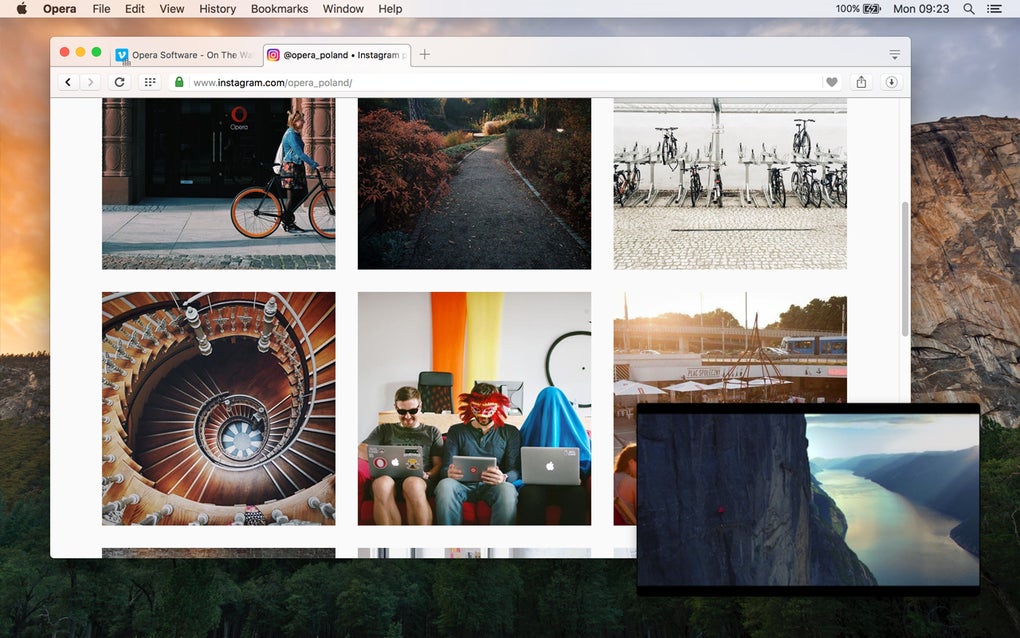
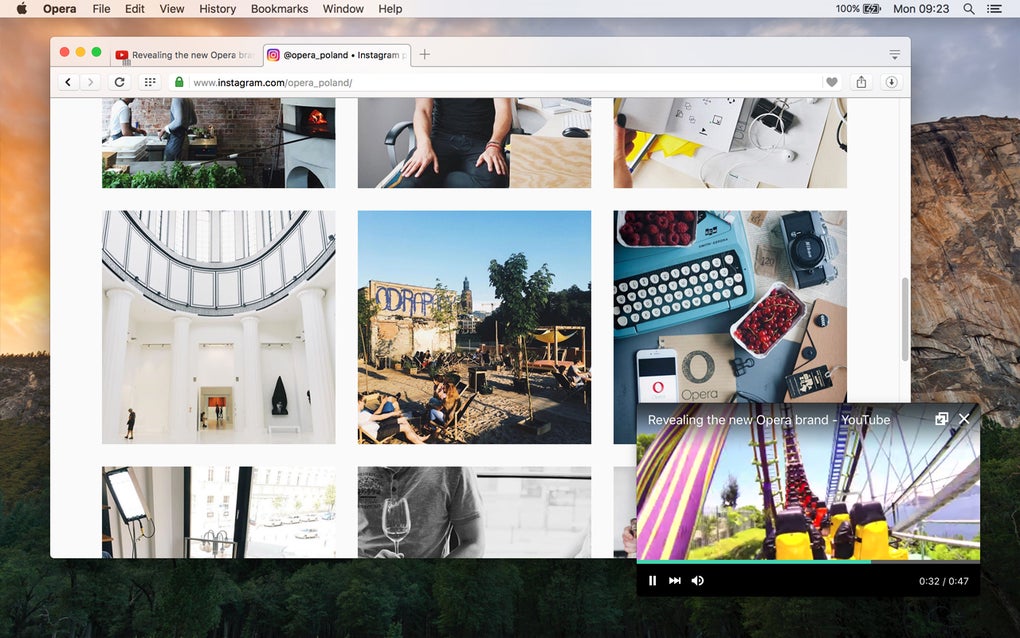
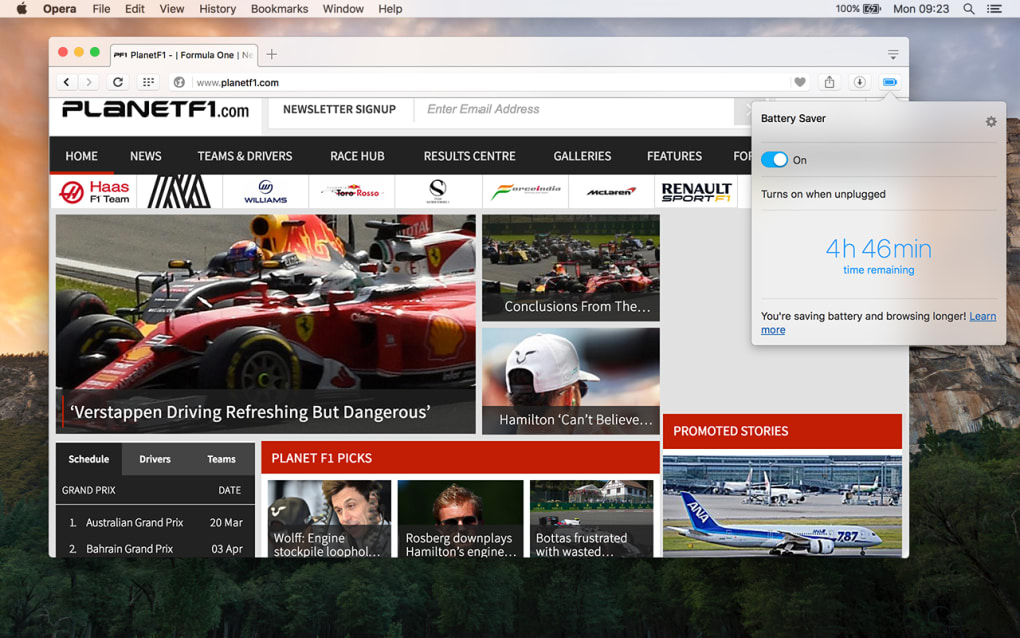
Opera Browser has evolved from a niche alternative into a full‑featured, Chromium‑based powerhouse that aims to redefine everyday browsing. While Google Chrome and Mozilla Firefox dominate market share, Opera differentiates itself with a blend of built‑in communication tools, a free unlimited VPN, and now AI‑driven assistants like ChatGPT and ChatSonic. These capabilities let you stay in the flow—whether you’re reading news, chatting with friends, or generating content on the fly—without ever leaving the browser window. The user interface follows a modern Metro‑style layout: a customizable start page that serves as a quick‑access hub, a left‑hand sidebar that houses messenger integrations (Facebook Messenger, Telegram, WhatsApp), and a suite of themes that let you personalize the look and feel. Performance‑wise, Opera leverages Chromium’s speed while adding its own turbo‑boost technology that compresses pages on slower connections, making it an attractive choice for both high‑end desktops and modest laptops. Security is baked in through the native VPN, which masks your IP address, encrypts traffic on public Wi‑Fi, and blocks tracking cookies without requiring a separate subscription. In short, Opera is more than a browser—it’s a mini‑operating system for the web that brings together navigation, communication, privacy, and AI assistance under one roof.
Key Features That Make Opera a Must‑Try Browser
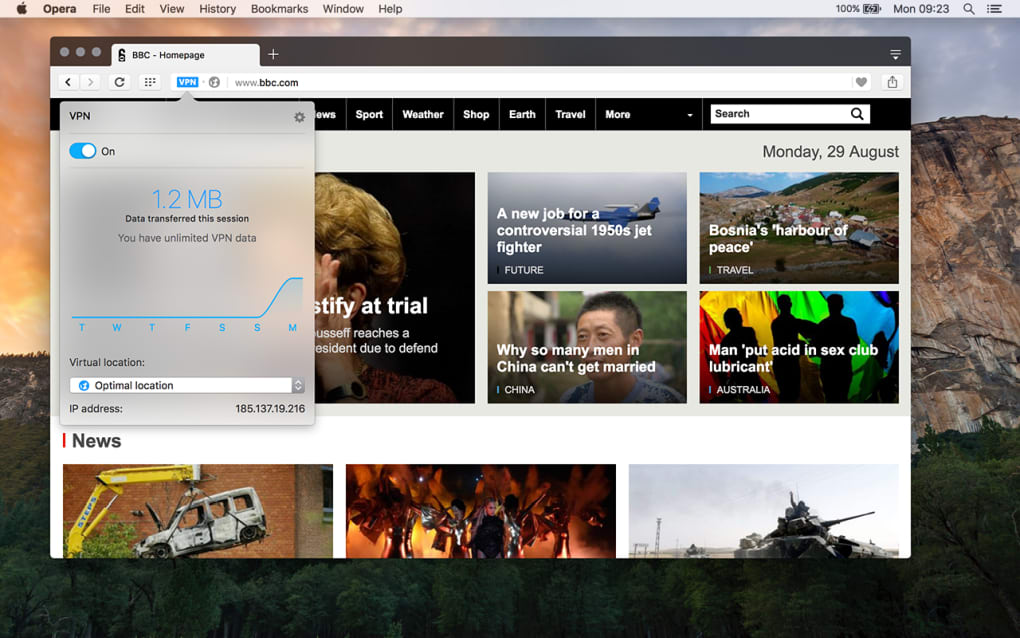
- Integrated Free VPN – Unlimited, no‑cost VPN that works in both normal and private windows.
- Built‑In Messengers – Facebook Messenger, Telegram, and WhatsApp are pinned to the sidebar for instant chat while browsing.
- AI‑Powered Assistant – ChatGPT and ChatSonic provide text summarization, content generation, and even text‑to‑image creation.
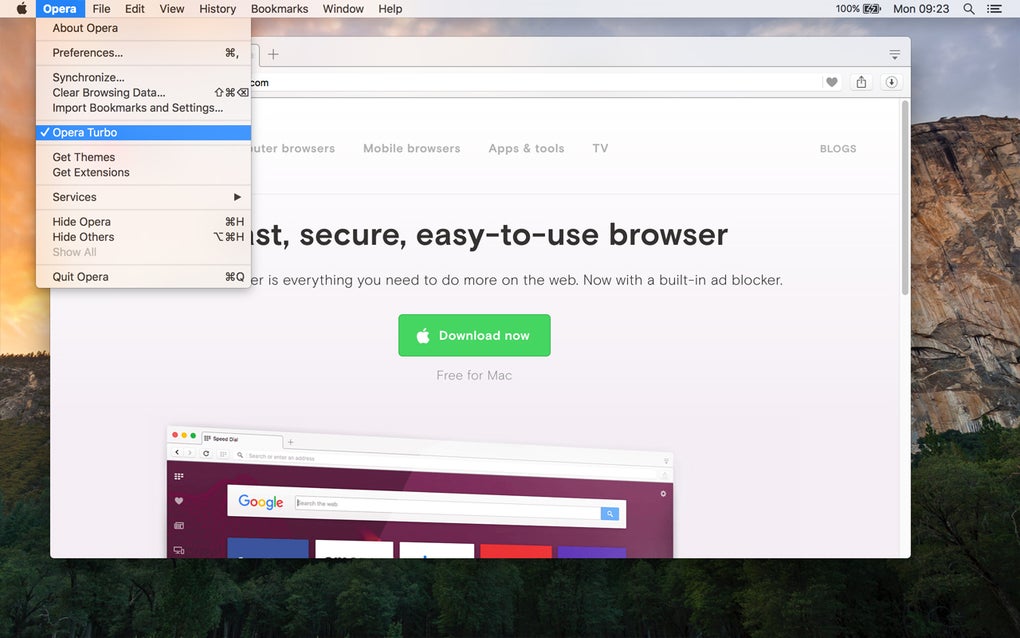
- Turbo Mode & Data Compression – Speeds up page loads on slow networks by compressing web traffic.
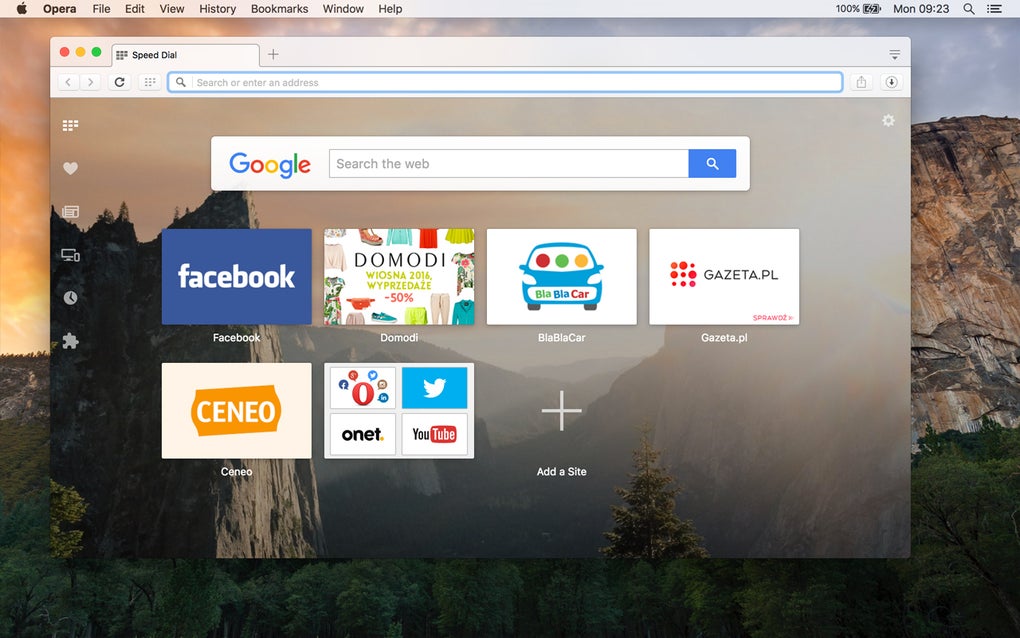
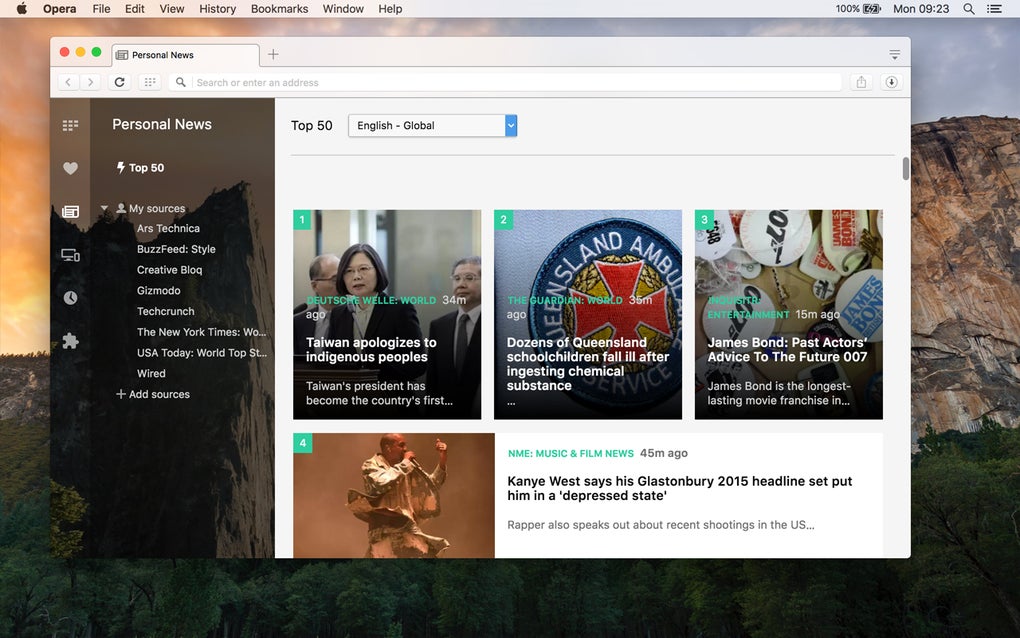
- Customizable Start Page – Metro‑style layout with quick‑link tiles, news feed, and theme support.
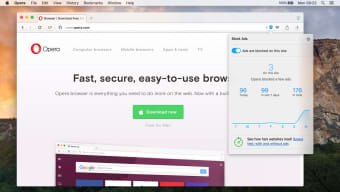
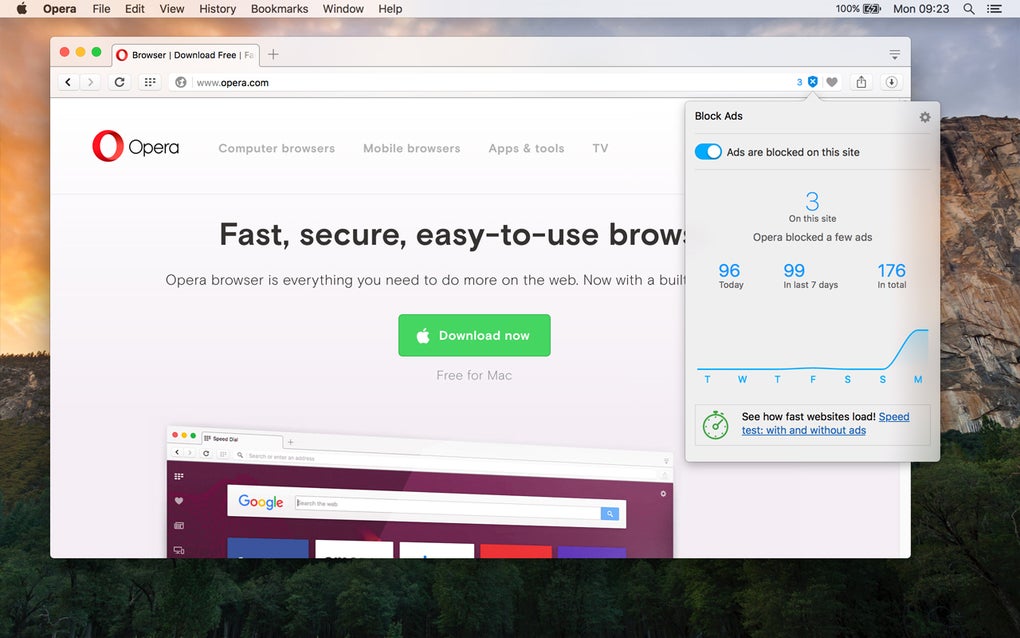
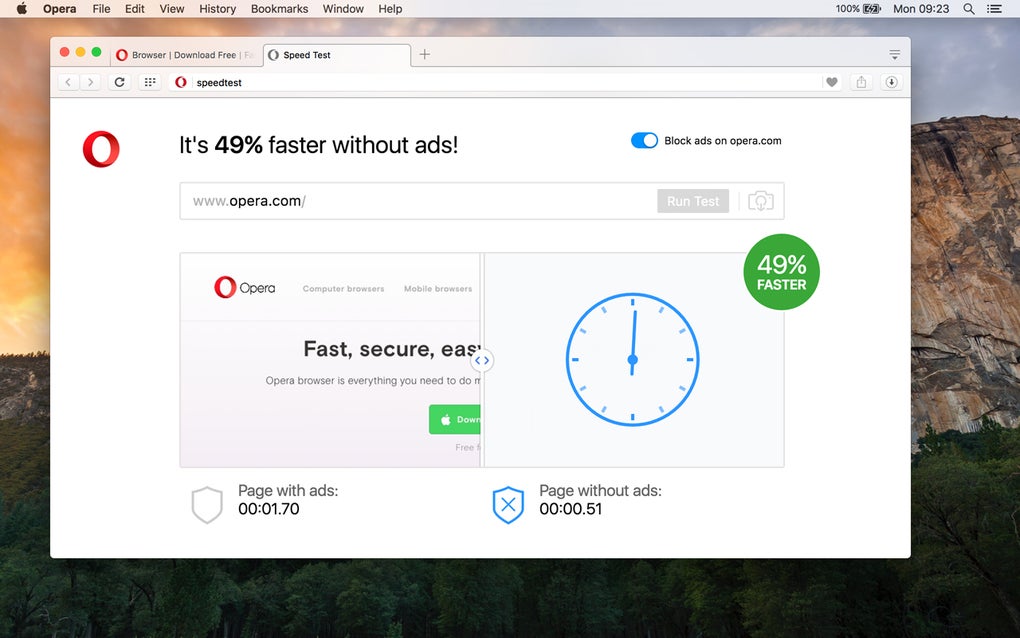
- Ad Blocker & Tracker Protection – Native ad‑blocking engine that also blocks invasive trackers.
- Cross‑Device Sync – Sync bookmarks, passwords, and open tabs across Windows, macOS, Android, and iOS.
- Built‑In Crypto Wallet – Securely store and manage cryptocurrencies directly from the browser.
Beyond the bullet list, each feature is designed to work seamlessly together. The VPN, for example, integrates with the ad blocker, ensuring that both privacy and performance are maximized simultaneously. The AI assistants are accessible via a floating icon; you can highlight any paragraph on a web page, click the icon, and receive a concise summary or a rewritten version in seconds. Meanwhile, the messenger sidebar stays active even when you open a new tab, so you never lose the context of a conversation. Opera also supports extensions from the Chrome Web Store, meaning you can add any familiar Chrome add‑on while still benefiting from Opera’s native tools. This layered approach—core features, AI enhancements, and extensibility—creates a browsing environment that feels both futuristic and comfortably familiar.
Step‑by‑Step Installation & Everyday Usage
Getting Opera up and running is straightforward, whether you’re on a Windows PC, a macOS laptop, or a mobile device. Follow these steps to ensure a smooth setup:
- Download the Installer – Visit the official Opera download page and click the “Download for Windows,” “Download for macOS,” or “Download for Android/iOS” button, depending on your platform.
- Run the Installer – On Windows, double‑click the .exe file; on macOS, open the .dmg and drag the Opera icon to the Applications folder. Mobile users will be redirected to the appropriate app store.
- Initial Configuration – The first launch presents a quick‑tour that explains the sidebar, start page, and how to enable the free VPN. Accept the default settings or customize them to suit your privacy preferences.
- Sign In for Sync – Create or log into an Opera account to sync bookmarks, passwords, and open tabs across devices. This step is optional but highly recommended for a seamless experience.
- Enable AI Assistants – Navigate to Settings → AI Features, toggle “ChatGPT” and “ChatSonic,” and choose your preferred language model. No additional download is required; the services run in the cloud.
- Personalize the Look – Head to Themes in the Settings menu to choose from a gallery of community‑crafted skins or create your own.
- Start Browsing – Use the address bar as usual. To access messengers, click the messenger icons on the left sidebar. To activate the VPN, click the VPN badge in the top‑right corner and toggle it on.
Everyday usage revolves around the sidebar. For example, if you receive a WhatsApp message while reading an article, a small badge appears on the WhatsApp icon. Clicking it opens a mini‑window where you can reply without navigating away. The AI prompt feature works by selecting text, right‑clicking, and choosing “Summarize with AI.” Opera then presents a concise summary in a pop‑up pane. These workflow shortcuts dramatically reduce context‑switching and keep you productive.
Compatibility, System Requirements, and the Pros & Cons
Opera is available for Windows 10/11 (64‑bit), macOS 10.14 and later, Linux distributions (via .deb or .rpm), Android 6.0 and newer, and iOS 13 and newer. The browser automatically updates in the background, ensuring you always have the latest security patches and feature releases.
Pros
- Free unlimited VPN that works without extra extensions.
- Integrated messengers eliminate the need for separate apps.
- AI assistants (ChatGPT, ChatSonic) boost productivity directly in the browser.
- Turbo mode speeds up browsing on slow connections.
- Highly customizable UI with themes and a flexible start page.
- Cross‑device sync for bookmarks, passwords, and open tabs.
Cons
- Higher RAM usage compared to lightweight browsers like Brave.
- Some legacy extensions from the Chrome Web Store may experience compatibility quirks.
- VPN may be slower on heavily congested servers in certain regions.
- AI features require an internet connection and may consume additional data.
- Initial learning curve for users accustomed to traditional browser layouts.
Overall, the benefits of integrated privacy tools, AI assistance, and built‑in communication outweigh the minor drawbacks. Users with modest hardware may notice a slight performance dip, but the trade‑off is a richer, more connected browsing experience.
Review Summary: Opera delivers a compelling mix of speed, privacy, and AI‑enhanced productivity. Its free VPN and messenger sidebar are standout features that cater to power users, while the AI prompts keep the browser future‑ready.
Frequently Asked Questions About Opera Browser
Is the Opera VPN really free and unlimited?
Yes. Opera’s built‑in VPN does not require a subscription, payment, or additional extensions. It provides unlimited data for both regular and private browsing windows, though speeds can vary based on server load.
Can I use Chrome extensions in Opera?
Opera is Chromium‑based, so most Chrome extensions are compatible. You can install the “Install Chrome Extensions” add‑on from the Opera Add‑ons store, which enables one‑click installation of extensions from the Chrome Web Store.
How does Opera’s AI assistant work?
The AI assistant connects to OpenAI’s GPT‑4 (for ChatGPT) and a proprietary GPT‑4 model (for ChatSonic). Users can summon the assistant via a floating icon, highlight text, or type queries directly. The service runs in the cloud, so it requires an active internet connection.
Does Opera sync data across all platforms?
Yes. By creating an Opera account, you can sync bookmarks, passwords, open tabs, and even the VPN status across Windows, macOS, Linux, Android, and iOS devices.
Is Opera safe for banking and online transactions?
Opera employs modern security standards, including HTTPS‑enforced browsing, built‑in ad blocking, and optional VPN. It is safe for banking, but as with any browser, ensure you keep the application updated and avoid installing untrusted extensions.
Conclusion – Should You Download Opera Today?
Opera Browser brings together a suite of tools that go far beyond simple web navigation. Its free VPN, integrated messengers, and AI‑driven assistants create a unified workspace that keeps you connected, private, and productive without juggling multiple apps. While the browser demands a modest amount of system resources, most modern devices handle it effortlessly, and the performance gains from Turbo mode make up for any occasional slowdown. If you value privacy, love having chat apps at your fingertips, and want to experiment with AI while you browse, Opera is a compelling free download. Click the button below to grab the latest version for Windows, macOS, Android, or iOS and experience a next‑generation browsing environment.
Download Opera Browser FreeGuides & Tutorials for Opera Browser
How to install Opera Browser
- Click the Preview / Download button above.
- Once redirected, accept the terms and click Install.
- Wait for the Opera Browser download to finish on your device.
How to use Opera Browser
This software is primarily used for its core features described above. Open the app after installation to explore its capabilities.
User Reviews for Opera Browser 0
No reviews found





.webp)